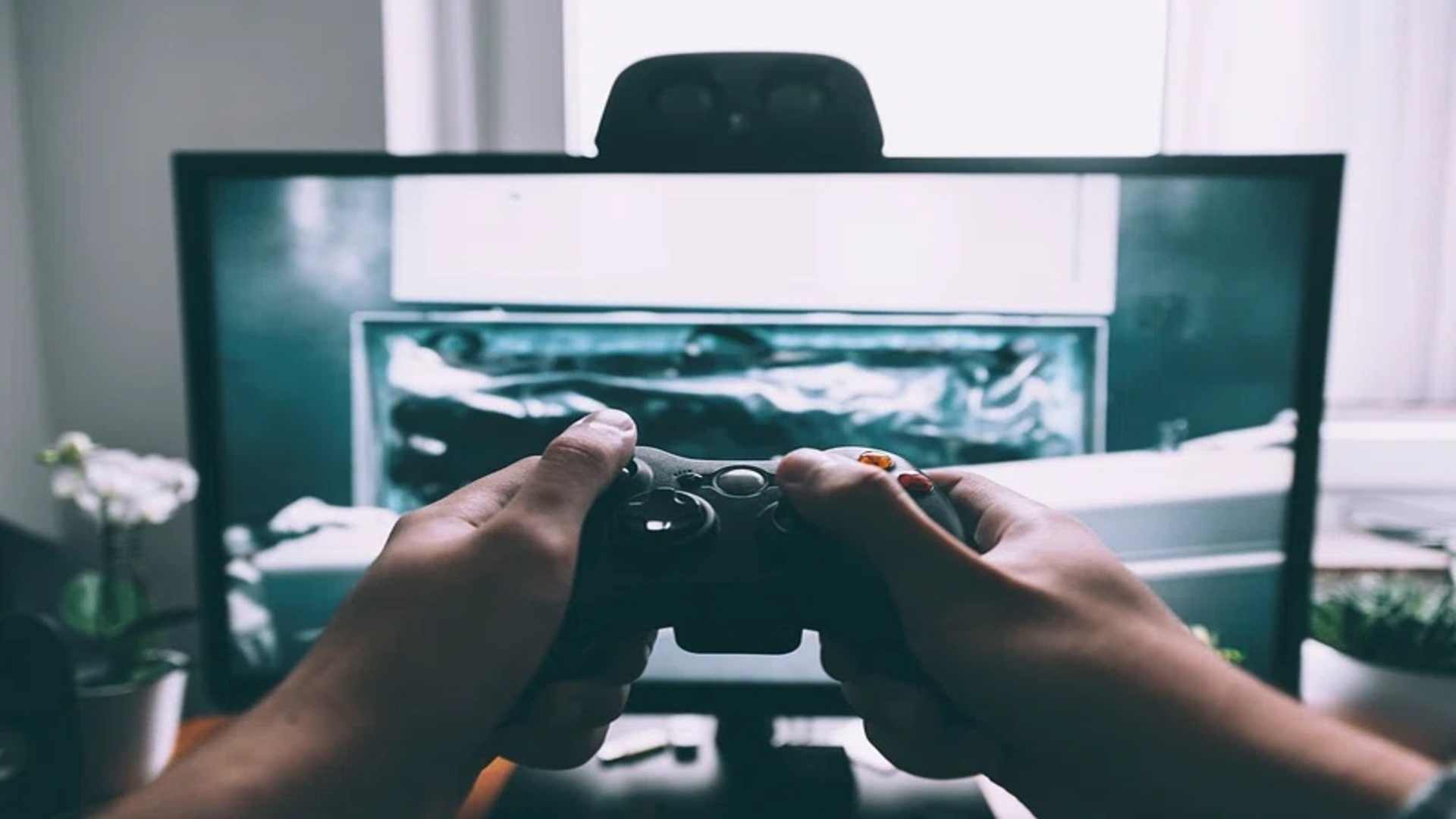
Connecting an Xbox controller to Steam is one of the easiest ways to enhance your PC gaming experience. Whether you prefer a wired USB connection or the freedom of wireless Bluetooth, Valve's platform offers full native support for modern Xbox gamepads. Setting up your hardware correctly ensures optimal button mapping, low input latency, and seamless compatibility across thousands of titles.
Connecting via Wired USB or Wireless Bluetooth
The most straightforward method to hook up your gamepad is using a compatible USB-C or Micro-USB cable. Simply plug one end into your controller and the other into an open PC port, allowing Windows and Steam to detect the device automatically.
If you prefer a wireless setup, press and hold the pairing button on your Xbox controller until the Xbox logo flashes rapidly. Open your computer's Bluetooth settings to pair the device, which Steam will automatically recognize once connected.
Configuring Controller Settings in Steam
Once your hardware is linked to your PC, open the Steam client and navigate to the main settings menu. Select the Controller tab to view detected devices and ensure Xbox Configuration Support is toggled on.
This setting allows Steam Input to translate controller signals across games that might lack built-in gamepad support. You can also run calibration tests here to adjust thumbstick dead zones and test button responsiveness.
Customizing Button Layouts and Steam Input Profiles
Steam Input gives players extensive control over button remap configurations for individual games in their library. Accessing the controller layout menu while a game is running enables you to tweak sensitivity curves or swap key bindings on the fly.
You can choose from official developer configurations or community-created layouts tailored to specific playstyles. This flexibility makes playing strategy games or complex action RPGs far more intuitive with a standard controller setup.
Troubleshooting Common Connection and Input Issues
If your gamepad fails to respond inside a game, ensure that conflicting software or third-party mapping applications are fully closed. Restarting the Steam client often resolves minor detection glitches without requiring a system reboot.
Outdated firmware can also cause unexpected disconnection loops during active gameplay sessions. Connecting your controller to a PC via the official Xbox Accessories app allows you to download the latest firmware updates quickly.